
Report-Engine v1.3.1
Create a Report
Now comes the heavy lifting. :mechanical_arm:
In this section you can create your report.
A report consists out of multiple blocks. These blocks can be set in any desired order. Most of the blocks can be used multiple times in your report. Be sure to test multiple set-ups and block combinations to achieve your ultimate report.
Go to "Reports" in the menu
Select "New report"
ℹ️ Info: In order to create a report, you require a working Zabbix server connection. Create your style before creating your first report.
Report details
The first section contain the report details. Here you need to define several general values.
Report title
This is a reference value. This name is also used in your report front-page and in the default e-mail subjects.
Zabbix server connection
From the dropdown you can select an available Zabbix connection.
⚠️ Warning: Ensure that you have created a Zabbix connection before creating a new report
Once the Zabbix server is selected, it will perform an API call towards the Zabbix server to fetch the available hostgroups
Host groups
From the dropdown you can select the host groups which you want to include in your report. Multiple host groups can be selected from the list.
ℹ️ Info: If you don't see any hostgroups, make sure to check if the API user has sufficient permissions to retrieve hostgroups
Report Style
Select the desired Style from the drop-down menu.
Reporting Period
A report always has a timespan. Here you can select the dynamic timespan the report should have. from current and past days, weeks, months, years. "Custom Period" allows you to set a custom period.
ℹ️ Info: A custom period is Fixed, this period will not evolve along in time when scheduling your report.
Click "Create & Build" to start building the Content of your Report
Report builder
In this section you can create the actual content of your report. Your report is built by adding different "Blocks" These blocks can contain different data. Several blocks can be selected once, other blocks can be added multiple times. The blocks can be edited to place them in different orders.
Blocks
Table of contents
This block enters a table of content to your report. If Active, the TOC is always shown on Page 2. This is filled automatically by the Headers and blocks you enter in your Report.

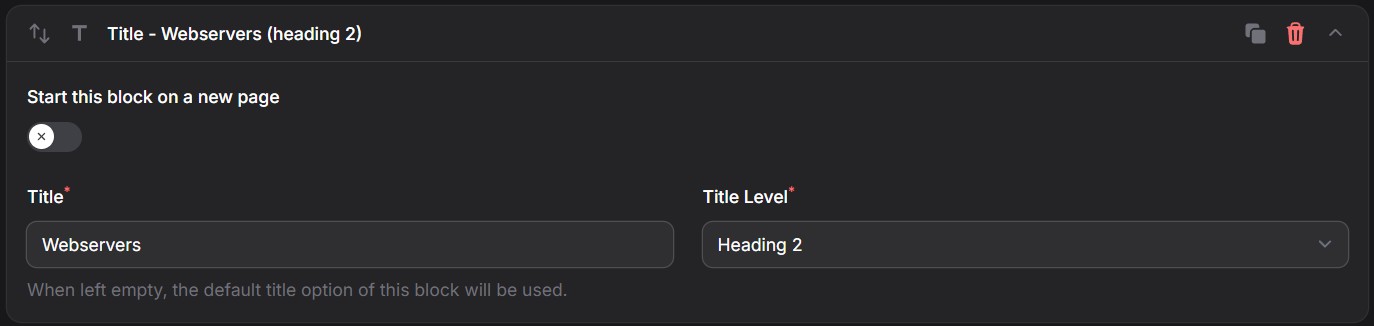
Title
This block allows you to add a Title to your Report.
Fields:
- Start on New Page
- Title
- Title Level -- 3 levels possible
Text
This block allows you to add a Fixed text your Report.
Fields:
- Text

Empty Lines
This block allows you to add free frame to your report. After execution of your report, you can add your personalized or itemized comments to the Report.
Fields:
- Number of empty lines

⚠️ Warning: In order to add your comments in these text areas, you need a tool allowing to write in a PDF file.
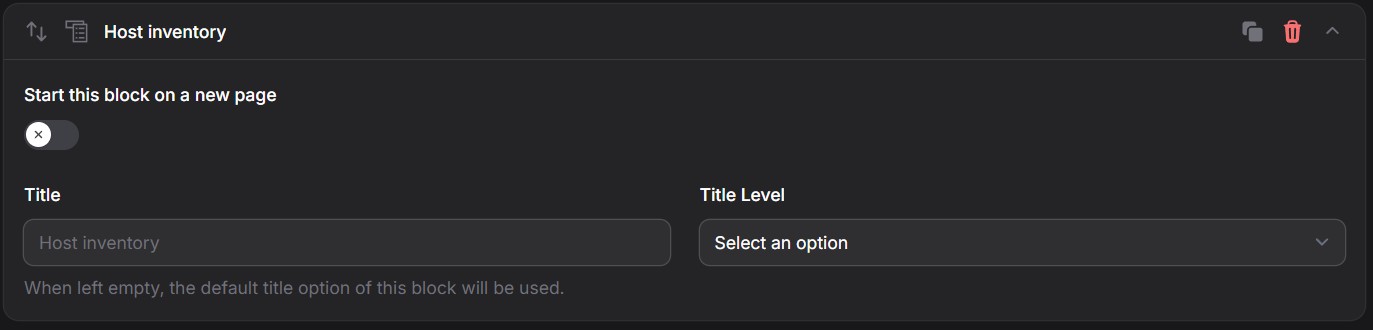
Host Inventory
This block lists all hosts in your selected hostgroups.
ℹ️ Info: In your style you can choose to show or hide disabled Hosts
Fields:
- Start on new page
- Title
- Title Level -- 3 levels possible
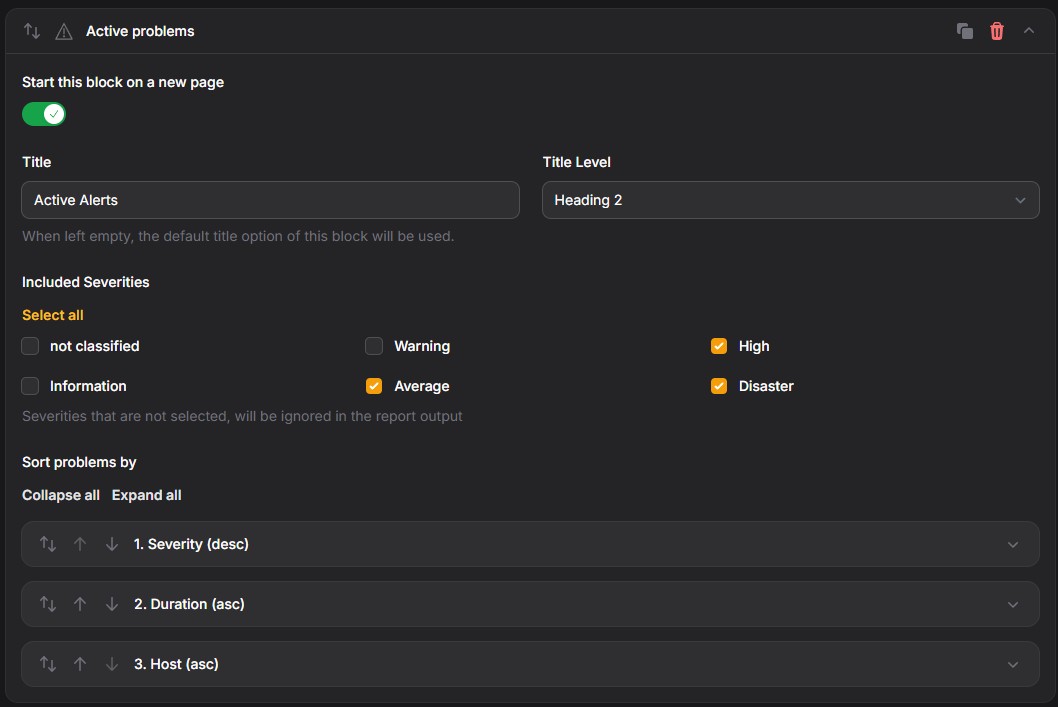
Active problems
This block creates a list of all active problems, at the time of Report creation..
Fields:
- Start on new page
- Title
- Title Level -- 3 levels possible
- Included severities
Allows you to set the severities to include in your report
- Sort options
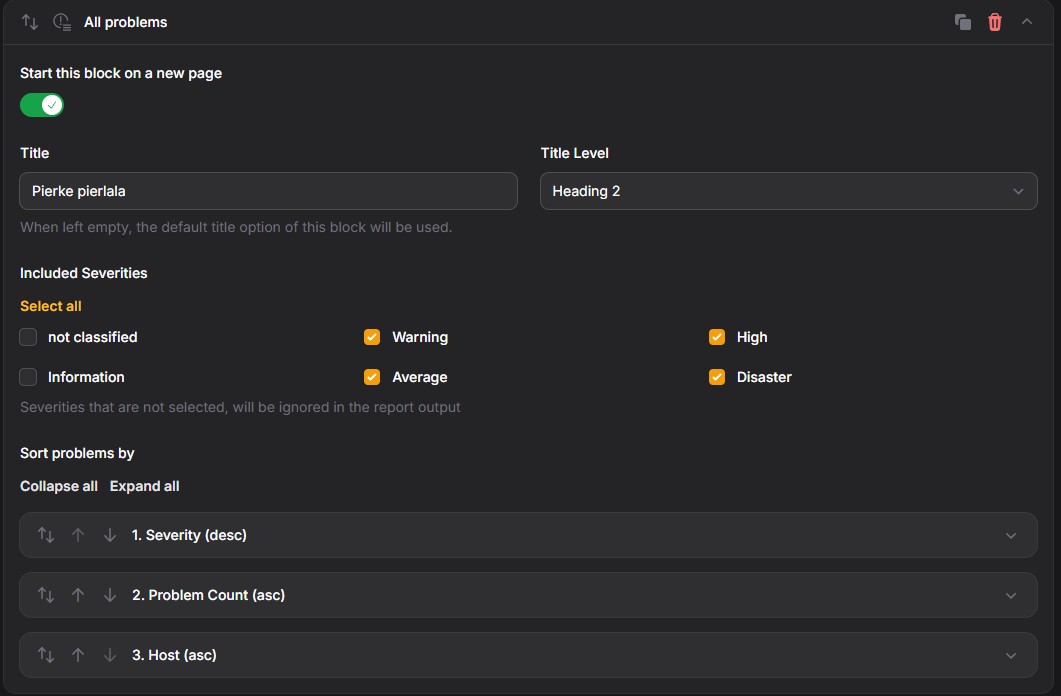
All problems
This block creates a list of all problems, that occurred during the timeframe of your report.
Fields:
- Start on new page
- Title
- Title Level -- 3 levels possible
- Included severities
Allows you to set the severities to include in your report
- Sort options
Graph
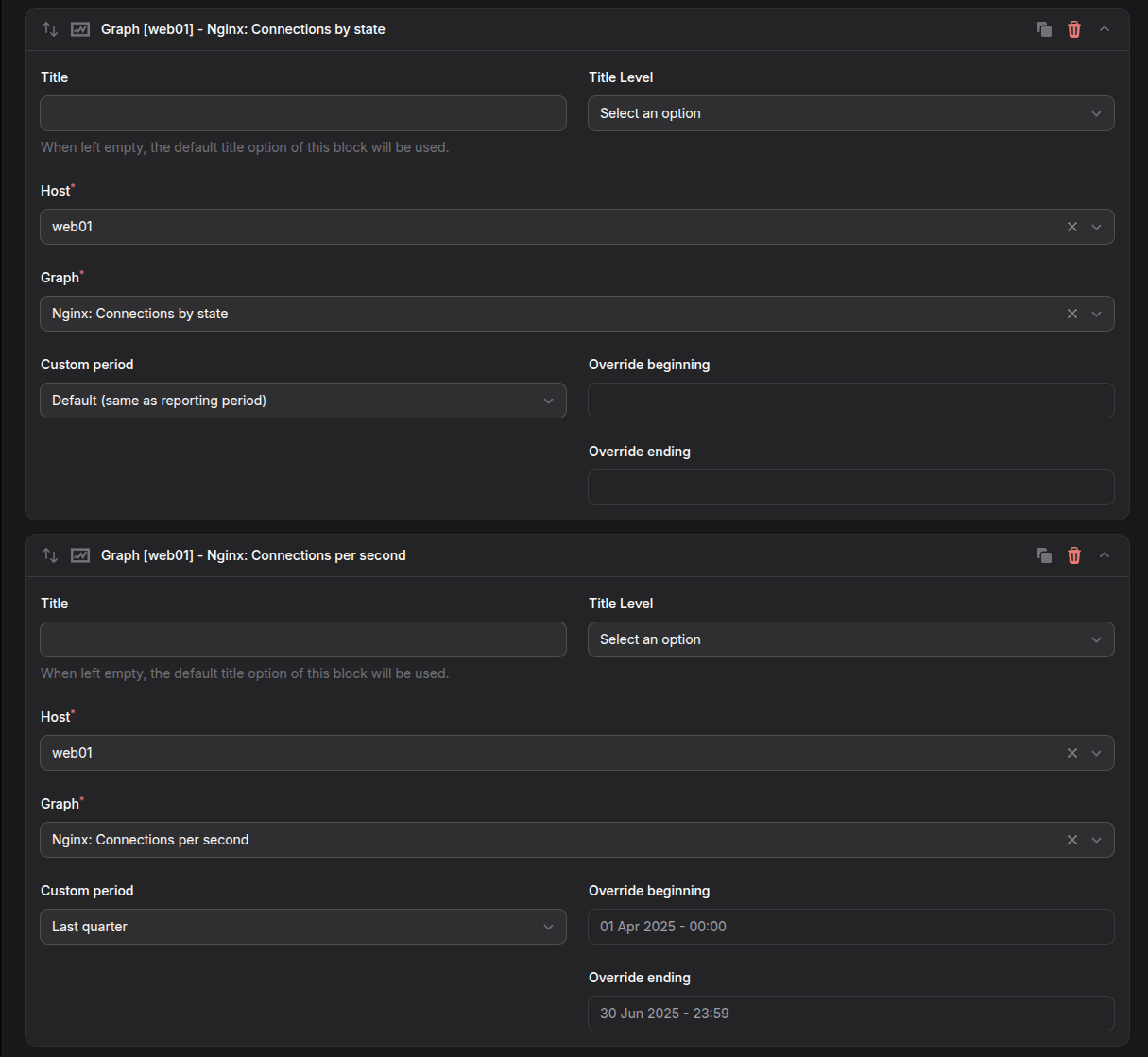
One of the main cornerstones of your report, Graphs. Any graph that is available in your Zabbix configuration can be shown in your report.
ℹ️ Info: In your style you can choose to show your graphs in Dark mode
Fields:
- Start on new page
- Title
- Title Level -- 3 levels possible
- Host (dropdown)
- Graph (dropdown)
- Custom time period
Page break
This block allows you to define a page break between any 2 blocks
ℹ️ Info: Several Blocks also contain the option to start on a new page

Single Stat
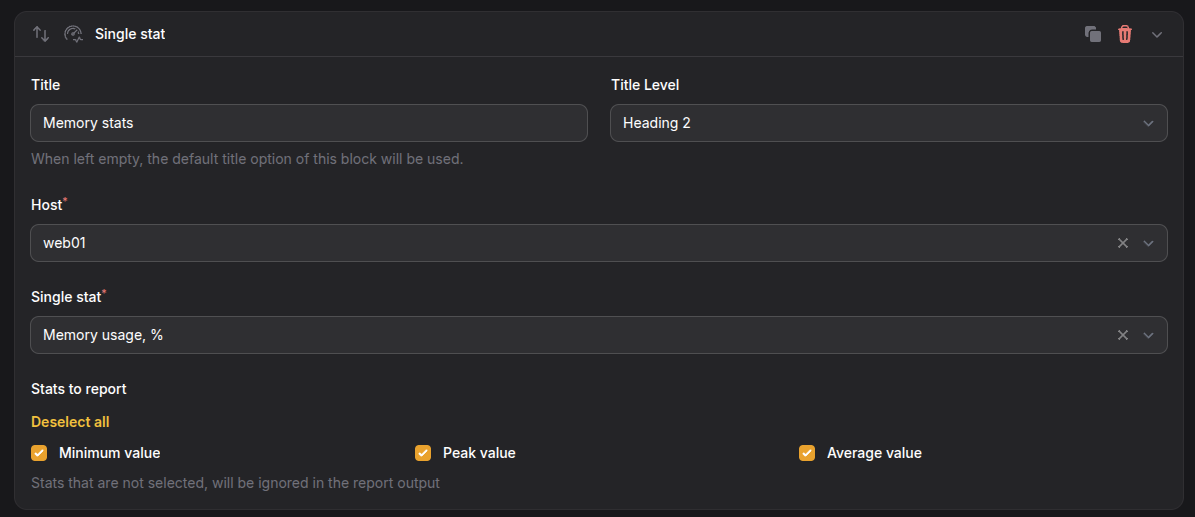
This blocks allows the reporting of a single stat value.
You can include the minimum, peak & average value of that stat.
This block is ideal to be combined with a graph.
Fields:
- Title
- Title Level -- 3 levels possible
- Host (dropdown)
- Single stat (dropdown)
SLA
When we talk about reporting, Service Level Agreements (SLA) can't be missed.
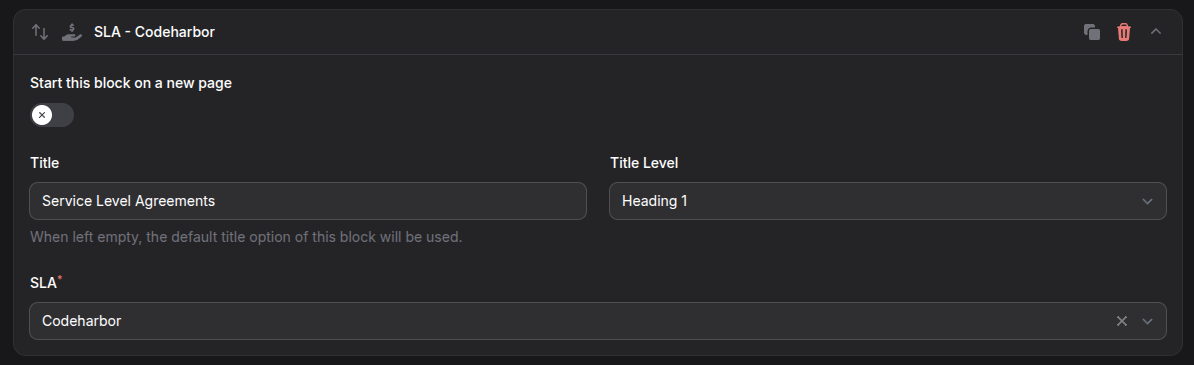
This blocks allows you to select a pre-defined SLA from Zabbix and render it in your report.
Fields:
- Start on new page
- Title
- Title Level -- 3 levels possible
- SLA (dropdown)
Do not forget to Save Changes before generating your report. This report can then be executed manually, or automatically via your schedules You can create and schedule multiple reports, depending on your needs, stakeholders, environments or message.